
Saving and versions
Save and restore versions of your plan
Updated October 30, 2026
A version is a copy of your whole plan at one moment: guests, groups, households, room, tables, seats, rules and design. Save one before a round of family changes or a new seating idea.
Save a version
- Click the save status at the top of the editor, such as Saved, or open the account menu and choose Saved versions.
- Type a name, like "Before the family's changes". Leave it blank and we'll name it by the date and time.
- Click Save version.
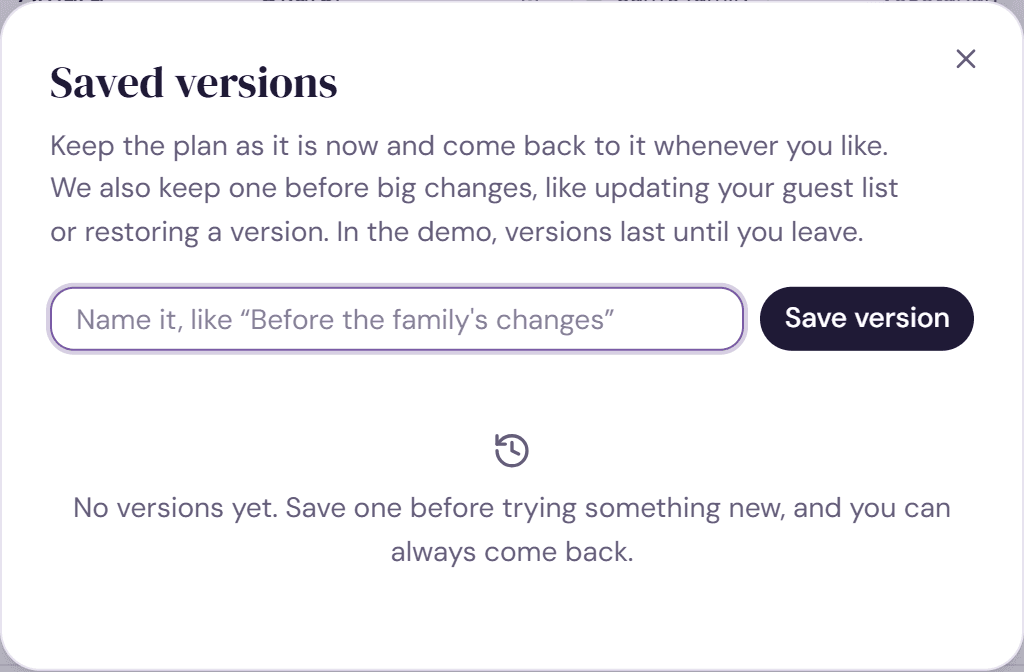
A version holds what's saved, so if your latest changes haven't saved yet, we'll ask you to check your connection and try again.
Restore a version
- Open Saved versions and find the version. Each one shows when it was saved, how many guests it had and how many were seated.
- Click Restore, then Restore this version.
Before restoring, we save the plan as it is now as a version too, so a restore can always be undone. Straight after restoring, you can also click Undo in the message.
What a restore brings back
Guests, groups, households, the room, tables, seats, rules, design, and guest details like meal choices all go back to how they were. The plan's name and date, any upgrade, the seat finder and sharing stay as they are now.
Automatic versions
We save a version marked Automatic before big changes: updating your guest list from a file when it changes or removes guests, and restoring an older version.
Good to know
- Each plan keeps its newest 40 versions, including up to 10 automatic ones. The oldest go as new ones are saved.
- To delete a version, click the trash button next to it, then Delete. This can't be undone.
- Only the owner and editors can see and use versions. When others are on the plan, each version shows who saved it.
- In the demo, versions last until you leave the page.
Try it on a sample planThe demo opens the Guests step with guests already added. Nothing you do there is saved.
Open the demoWas this helpful?