
Design and printing
Acrylic and mirror signs
Updated October 30, 2026With Studio and Pro
On a clear finish there's no paper: only your ink is printed, and the wall or glass shows through.
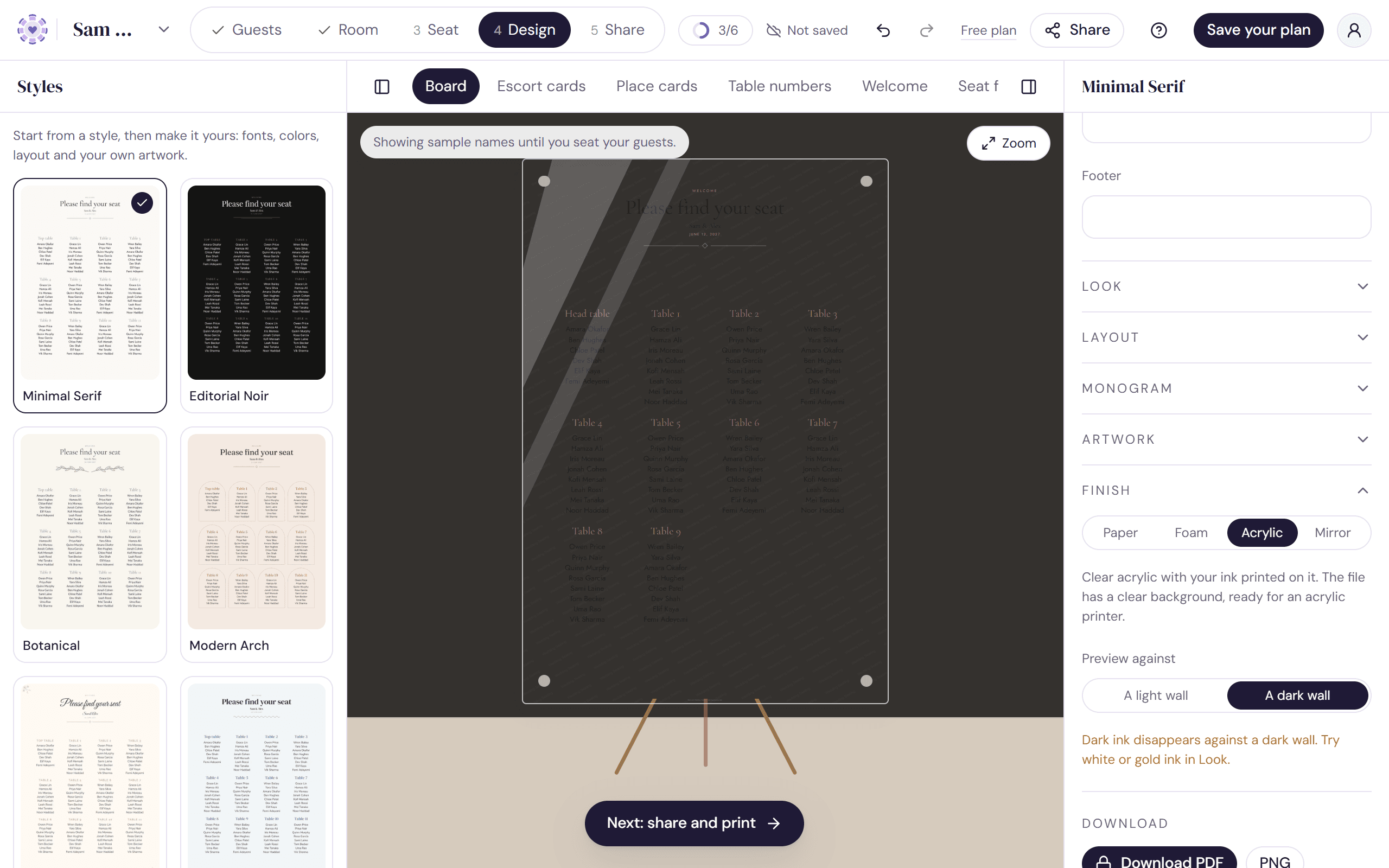
- Open Design and choose Board, Welcome or Seat finder.
- Open Finish and choose Acrylic or Mirror.
- Under Preview against, choose A light wall or A dark wall to see how it reads.
- Download the PNG for a transparent background, or the PDF.
Choosing your ink
Your ink needs to stand out against whatever is behind the sign. If it won't, a note tells you: dark ink disappears against a dark wall, and pale ink against a light one. Change Ink in Look to fix it. On a mirror, light inks read best.
Good to know
- Clear finishes are for signs: the board, welcome sign and seat finder sign. Cards, table numbers and menus print on paper.
- Both files have 3 mm of bleed, like every other sign.
- Clear finishes print with Studio for every style, including Minimal Serif.
Try it on a sample planThe demo opens the Design step with guests already added. Nothing you do there is saved.
Open the demoWas this helpful?