
Design and printing
Choose a style for your stationery
Updated October 30, 2026
A style sets the fonts, colors and ornament for every piece you make, so your seating board, cards and signs all match. There are styles for every kind of celebration, from Minimal Serif and Botanical to Art Deco and Marigold.
- Open Design. Styles lists every style with a small picture of its board.
- Click a style. The preview in the middle updates straight away.
- Use the tabs above the preview (Board, Escort cards, Place cards and the rest) to see each piece in the same style.
- Click Zoom to check names and small type up close, and Fit to see the whole piece again.
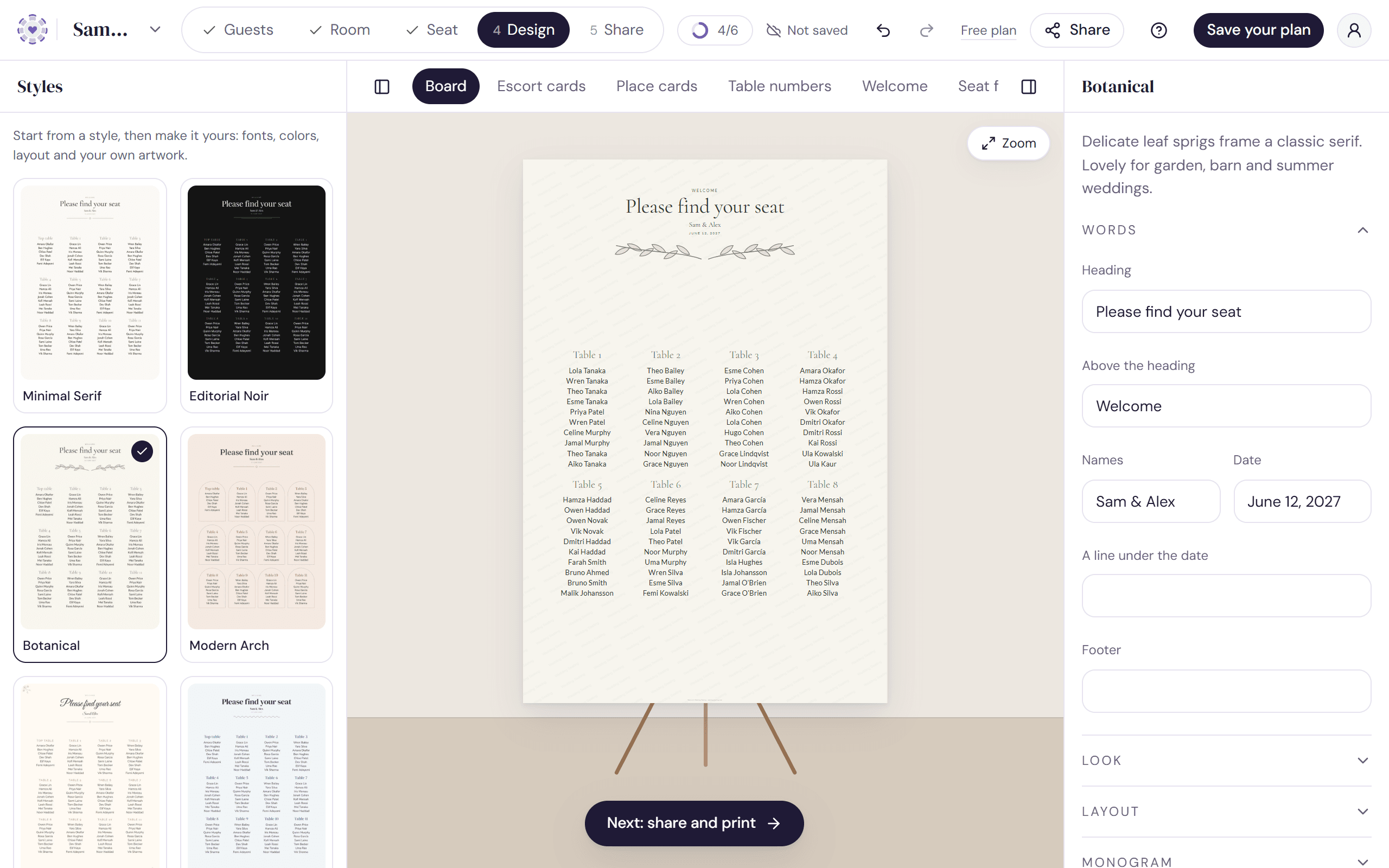
What the preview shows
The preview is made from the same file that prints, so what you see is what you'll get. Signs stand on an easel or in a frame against a wall, and cards and menus lie on a tablecloth, so you can picture them on the day.
Until you seat your guests, the board and cards show sample names. If a design can't be downloaded on your plan yet, or would download with a watermark, the preview shows a light watermark too.
Switching styles
Choosing a new style resets the look (fonts, colors and ornament) to that style's own. Your words, layout, monogram and artwork stay. If you've changed the look, the selected style is marked “Yours”.
Which styles you can print
Anyone can try and preview every style. The plain Minimal Serif seating board downloads on every plan, with a light watermark on the free plan; see The free seating chart. Every other style prints with Studio.
Try it on a sample planThe demo opens the Design step with guests already added. Nothing you do there is saved.
Open the demoWas this helpful?