
Getting started
Save your plan to an account
Updated October 30, 2026
You can start planning without an account. Your plan saves as you go, but only this browser can open it. Saving it to an account lets you open it anywhere, and you'll need an account to invite people or upgrade.
- Click Save your plan at the top right of the editor. It's also in the account menu as Save your plan to an account.
- Click Continue with Google, or enter your email and click Email me a sign-in link.
- If you chose email, open the link we send on this device, in this browser.
- You're back in your plan, and it's saved to your account.
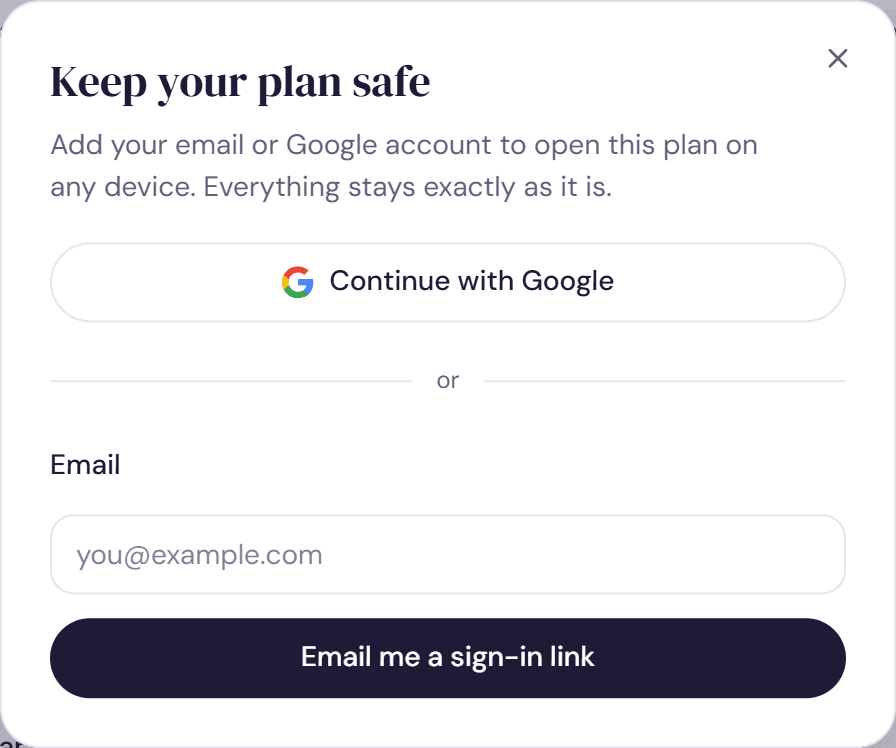
What happens to your plan
Nothing in the plan changes. It's now tied to you rather than to this browser, and it's listed on Your plans wherever you sign in.
If that email or Google account already has a Wedding Seating account, we sign you in to it and move this plan across, alongside your other plans.
When we'll ask
- The first time your guests get their seats, a message offers Keep this plan.
- When you invite someone or upgrade, we ask you to save your plan first, so people know who invited them and your receipt reaches you.
Signing in next time
There's no password. Choose Google, or ask for a new email link each time. If the email doesn't arrive within a minute, check your spam or promotions folder. Still stuck? See Fix sign-in problems.
Was this helpful?