
Sharing and the seat finder
Download the QR code and seat finder sign
Updated October 30, 2026With Event Pass, Studio and Pro
Every published seat finder has a QR code that opens its link. Guests scan it with their phone camera and land on the seat finder.
Download the QR code
- Publish your seat finder on the Share step, if you haven't yet.
- In the Guest seat finder card, find the QR code under the link.
- Select SVG for print for a file that stays sharp at any size, or PNG for an image 1200 pixels wide.
Both are dark on white and named after your link. Send the SVG to a designer or print shop who is making your signs.
Print a seat finder sign
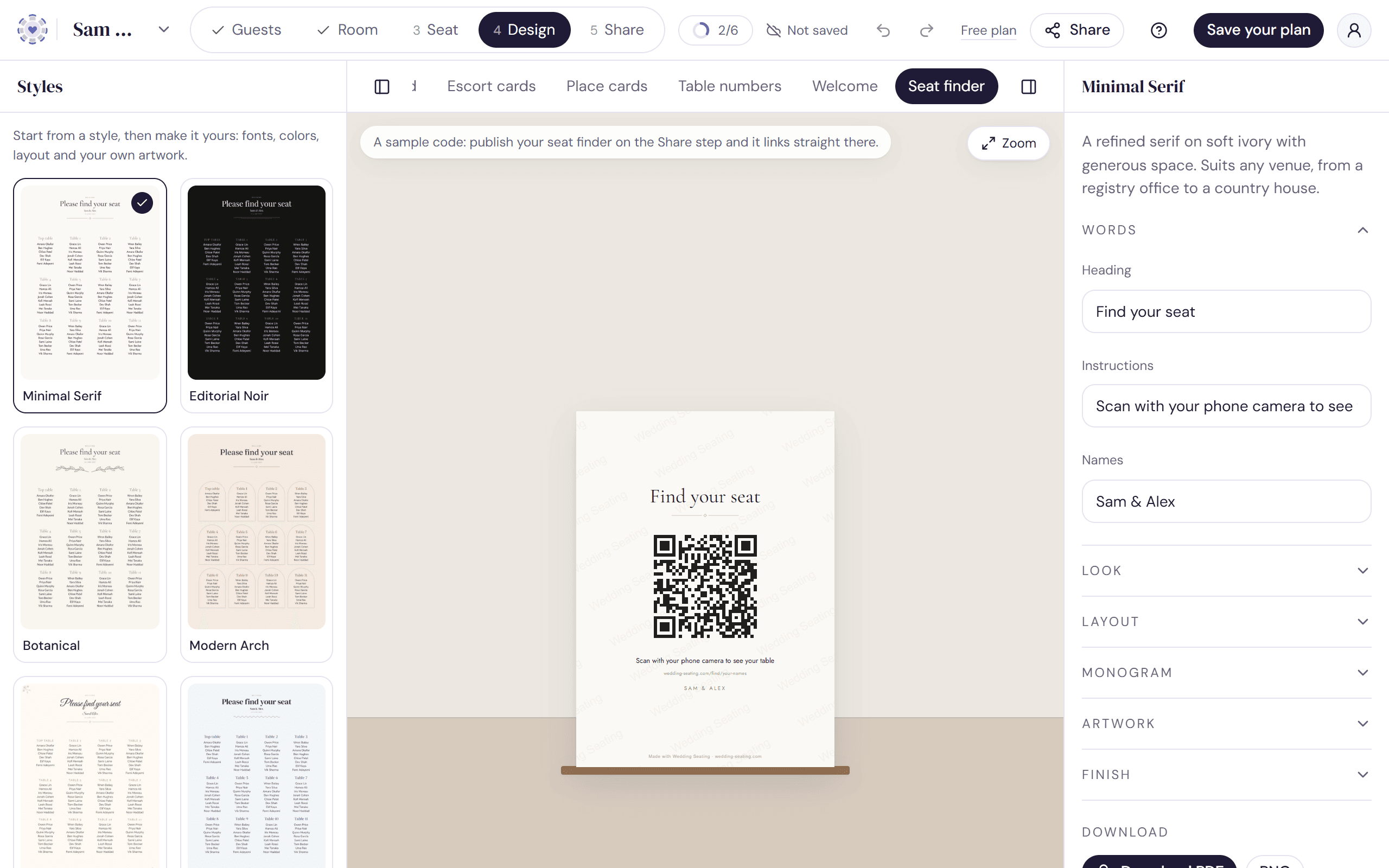
The seat finder sign is one of your design pieces. It puts the QR code in your chosen style with a heading, a line of instructions and your names, and writes the link out under the code for anyone who'd rather type it.
- Open the Design step and choose Seat finder from the pieces.
- Edit the Heading, Instructions and Names if you like. The heading starts as “Find your seat”.
- Choose a Size: A5, 5 × 7", A4 or 8 × 10".
- Select Download PDF for a print-ready file, or PNG.
Until your seat finder is published, the preview shows a sample code and downloads are paused, so a sign can never point to the wrong place. Once it's published, the sign uses your live link.
Which plan you need
The QR code comes with the Event Pass, along with the seat finder, and so does the sign in the plain Minimal Serif style. Every other style, or your own colors and fonts, prints with Studio. See Plans compared.
Try it on a sample planThe demo opens the Design step with guests already added. Nothing you do there is saved.
Open the demoWas this helpful?