
Guests
Keep households and groups together
Updated October 30, 2026
Households
Households are made for you when you add “Sam & Alex Smith”, paste a family on one line, import a party or household column, or add a plus-one. When you seat everyone, households sit together unless your rules say otherwise.
- Select a guest in your list.
- In the panel on the right, choose a Household: On their own, New household, or an existing one, shown with how many people are in it.
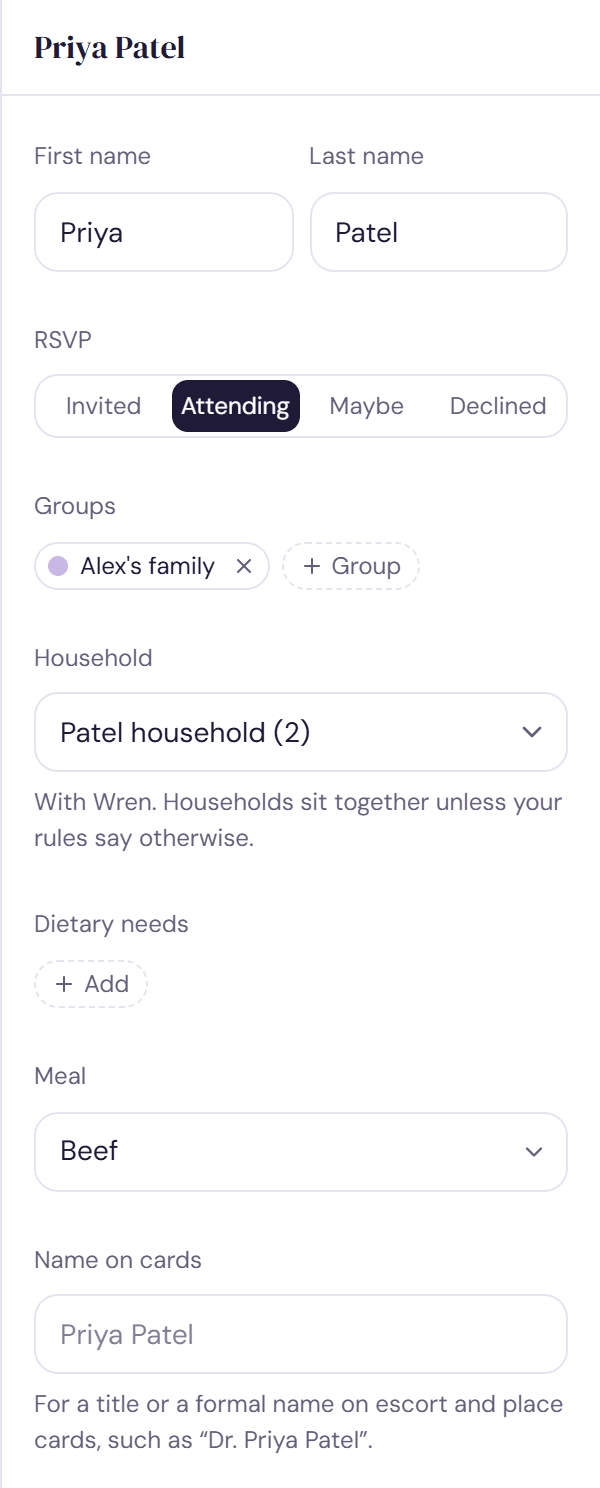
To put several guests together, select them and click Seat together as one household. Remove from their households splits them up.
Groups
Groups live in the Groups panel on the left, each with its own color. Click a group to see only its guests, and Everyone to see the whole list again. Guests you add while a group is showing join it.
- Make a group: click the plus at the top of the Groups panel and type a name. You can also type a new name at the bottom of any group picker.
- Add guests: click the groups cell in a guest's row (it reads Add group when empty), or Group in their details. Select several guests and click Groups to add them all at once.
- Rename, recolor or delete a group from the three-dot menu that appears when you point at it. Deleting a group keeps its guests.
- Guests without a group show under No group.
Headings in a pasted list, like “# Sam's family”, and a group, side or tags column in a spreadsheet make groups too. Two sides, several circles or none at all: it's up to you.
How they shape seating
In Seat, Households sit together and Groups sit together when they can are on under Always considered. You can turn either off, and name groups in your own rules, like “college friends together”. See Write seating rules.
Try it on a sample planThe demo opens the Guests step with guests already added. Nothing you do there is saved.
Open the demoWas this helpful?