
Guests
Track meal choices and dietary needs
Updated October 30, 2026
Set up your menu choices
- In Guests, click Details above your list. It appears once you've added guests.
- Under Meal choices, type a choice and click Add, or click a suggestion such as Beef, Fish or Vegetarian.
- Click Done.
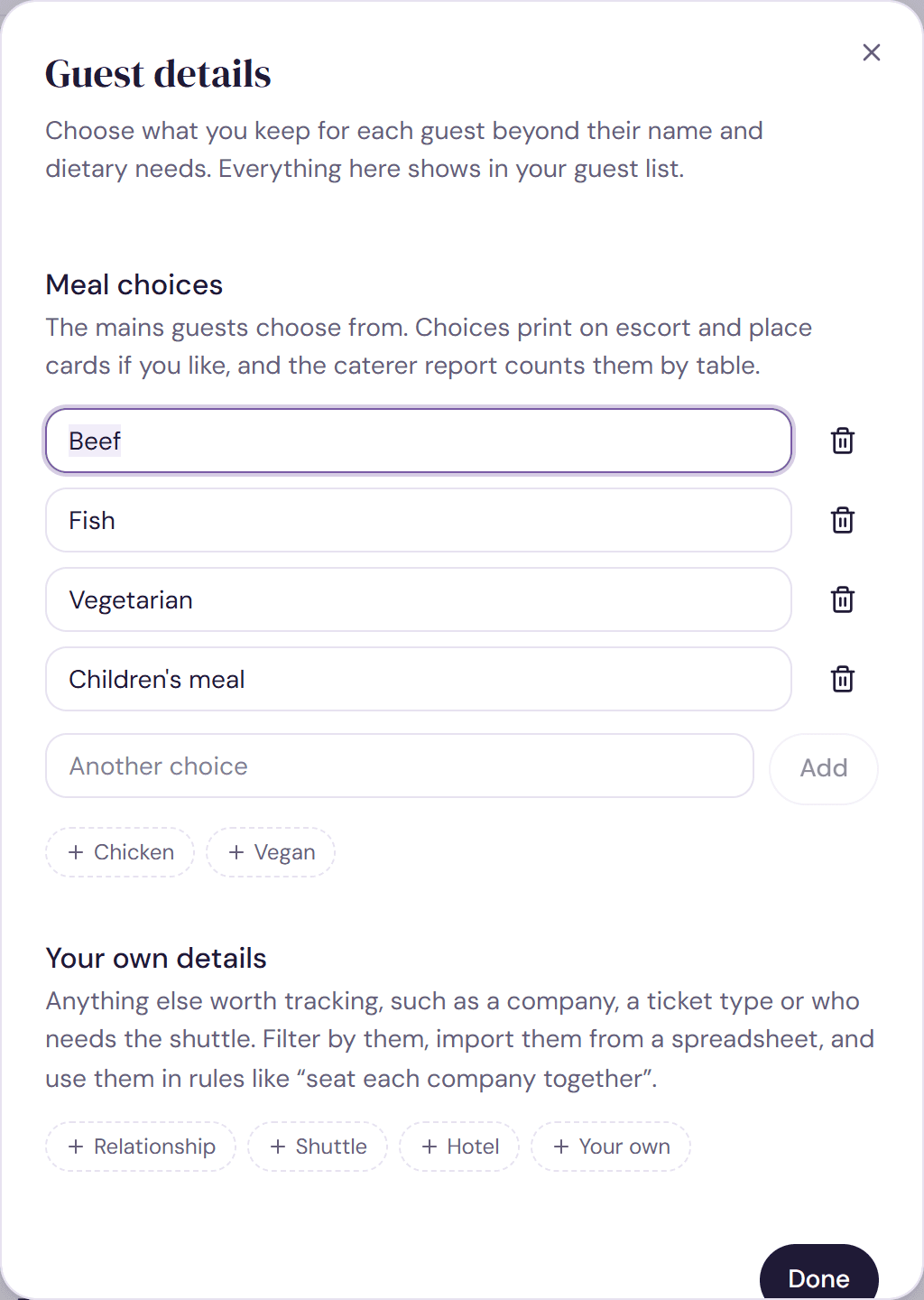
You can offer up to 8 choices. Renaming a choice updates every guest who picked it; removing one sets those guests back to not chosen.
Choose each guest's meal
Select a guest and pick their Meal in the panel on the right, or use the Meal column in the list on a wider screen. To give several guests the same meal, select them and pick it under Meal in Edit guests. A meal column in a spreadsheet fills this in too, and a Vegetarian or Vegan meal also adds that dietary need.
Dietary needs
Dietary needs are separate from the meal, since a guest can choose the fish and still need it gluten free. Click Add (or Change) under Dietary needs in a guest's details, or the dietary cell in their row on a wide screen, and tick what applies: vegetarian, vegan, pescatarian, halal, kosher, Jain, no pork, no beef, gluten free, a nut, shellfish or dairy need, or no alcohol. Type anything else at the bottom of the list. When you paste names, “(veg)”, “(gf)” or “(halal)” after a name works too.
Where they show up
- At a glance, at the bottom of the Groups panel, counts each dietary need, and under Meals each choice plus everyone who hasn't chosen.
- Filter finds guests by dietary need or by meal, including Not chosen yet.
- In Seat, you can color the chairs by Meals to check a table at a glance.
- On escort and place cards, Meal on each card in Design shows the meal as a Word or a Color dot, or keeps it Hidden.
- The caterer report counts meals and dietary needs table by table. It comes with an Event Pass.
Try it on a sample planThe demo opens the Guests step with guests already added. Nothing you do there is saved.
Open the demoWas this helpful?