
Seating
Write your seating rules
Updated October 30, 2026
Rules tell the seating what matters to you: who sits together, who stays apart, who should be near the dance floor. Type what you want and the AI turns each line into a rule you can check.
- Open Seat and choose the Rules tab.
- Under How would you like people seated?, type one rule per line, like “Keep Uncle Dave away from the bar” or “Sam and Jordan at different tables”.
- Click Add rules, or press Ctrl+Enter (Cmd+Enter on a Mac).
- Read each rule under Check these. Adjust anything that's off, then click Looks right.
- Added several? All look right confirms them together.
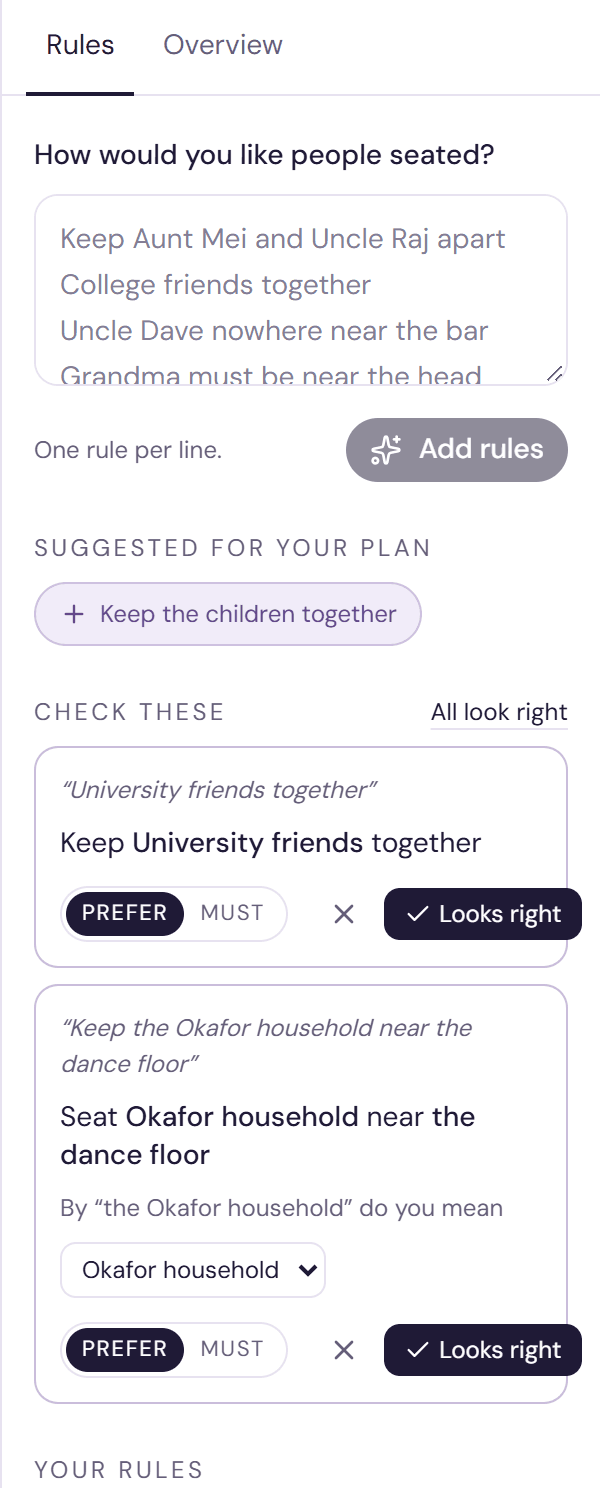
Checking a rule
Each rule shows your words and, below them, the rule as the seating will read it. Before you confirm it you can:
- Pick the person you mean from the menu on the rule, when a name matches more than one guest.
- Switch between Prefer and Must. See Musts and preferences.
- Discard it with the cross on the right.
If a rule can't be used, it says why: a name that isn't on your guest list, a table or section that isn't in your room yet, or a wish that isn't about who sits where. Fix it and add the rule again.
What you can ask for
- Guests, groups or households together, or at different tables (even a set number of tables apart)
- Near or away from other guests
- At, or not at, a particular table
- Near or away from the dance floor, bar, stage, entrance, head table, DJ, cake table, gift table, photo booth or speakers
- Near the front, or inside a section you've drawn in the room
- Guests who share a detail, like the same company, seated together
You can refer to the children, VIPs, guests with access needs or guests having a particular meal, as well as people by name.
Suggested rules
Under Suggested for your plan you may see up to three ready-made rules that fit your list, such as a children's table when four or more children are coming, or your wedding party at the head table. Click one to add it to Check these, then confirm it like any other.
Managing your rules
Confirmed rules are listed under Your rules. Uncheck a rule to turn it off without deleting it, or hover over it and click the trash icon to delete it. Only checked rules are used when you seat everyone.
Try it on a sample planThe demo opens the Seat step with guests already added. Nothing you do there is saved.
Open the demoWas this helpful?