
Seating
See your room in 3D
Updated October 30, 2026
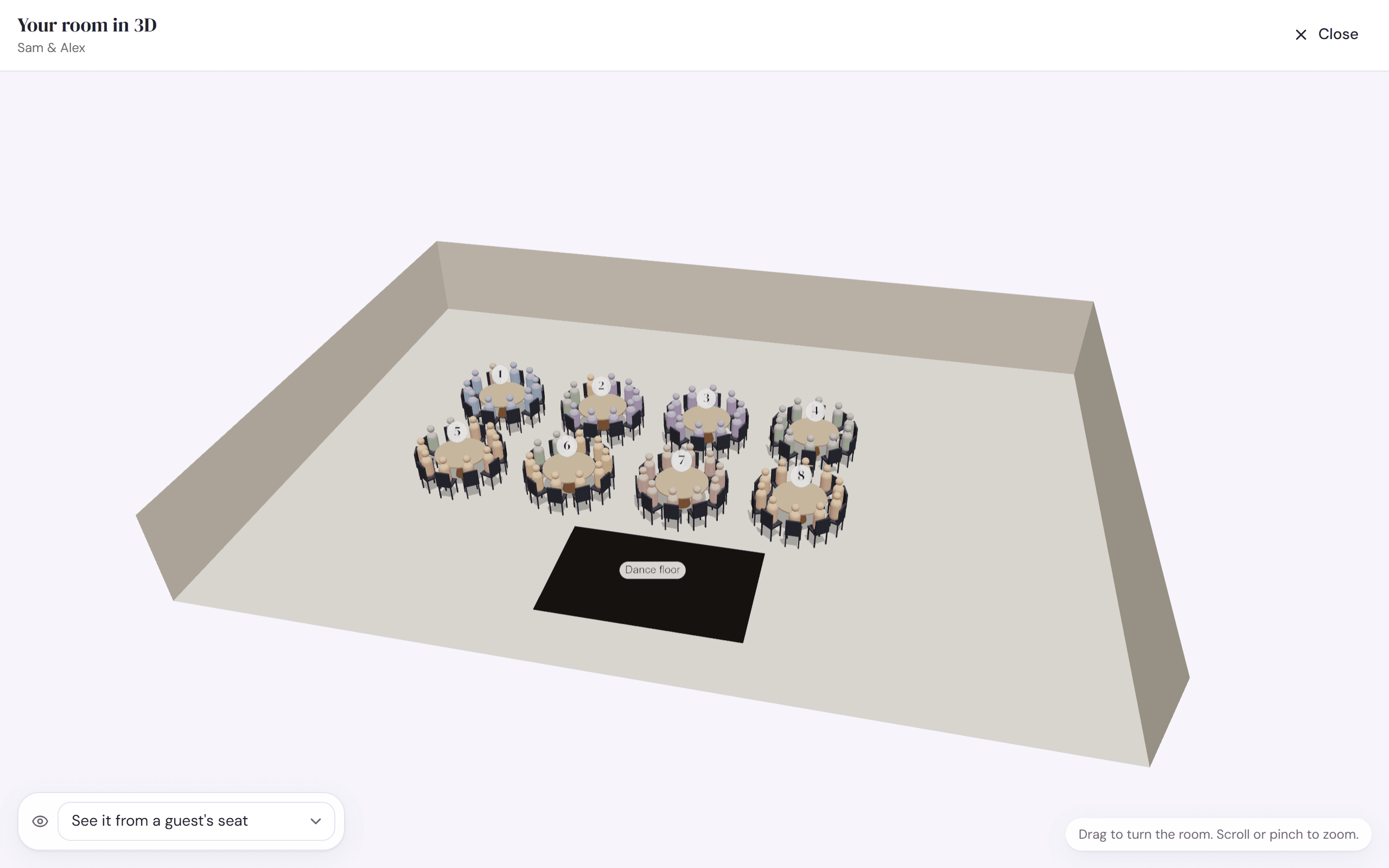
The 3D view builds your room from your plan: walls, doors and windows, room features, tables with their linens, chairs in the style you chose, and a figure for every seated guest.
- In Room or Seat, click 3D in the toolbar.
- Drag to turn the room. Scroll, or pinch on a touch screen, to zoom.
- Hover over a guest to see their name.
- To sit in someone's seat, choose them from See it from a guest's seat at the bottom. Drag to look around from there.
- Click Back to the room to stand up again, and Close (or press Esc) to return to your plan.
Good to know
- It's for looking only. Make changes on the plan, and they show up in 3D.
- Only seated guests appear, so seat people first to see their view.
- While you're in a seat, the table numbers hide, and so does the guest whose seat you're in.
- The floor, linens and chair style come from Room. See Floors, linens and chairs.
- If 3D won't start, try another browser, or turn on hardware acceleration in your browser's settings.
Try it on a sample planThe demo opens the Seat step with guests already added. Nothing you do there is saved.
Open the demoWas this helpful?